
[For Beginners] eSIM Setup Guide - Complete in 3 Minutes!
In this article, you can learn how to set up an eSIM in about 3 minutes.
In addition, we will introduce what eSIM is and what benefits it offers.
What is an eSIM? | Differences and Advantages from a Physical SIM
An eSIM is a SIM card built into your smartphone, allowing you to use it without having to physically insert or remove a SIM card like with traditional SIM cards. You can keep your physical SIM card and enjoy affordable data communication when traveling abroad.
The contract and activation procedures can be completed online, so you can start using it right away, even just before your trip. With eSIM, there is no need to replace the SIM card, so there is no risk of it being lost or damaged, and you don't have to return it either.
Here are five steps to help you set up your eSIM in just three minutes.
STEP 1 | Purchase an eSIM plan
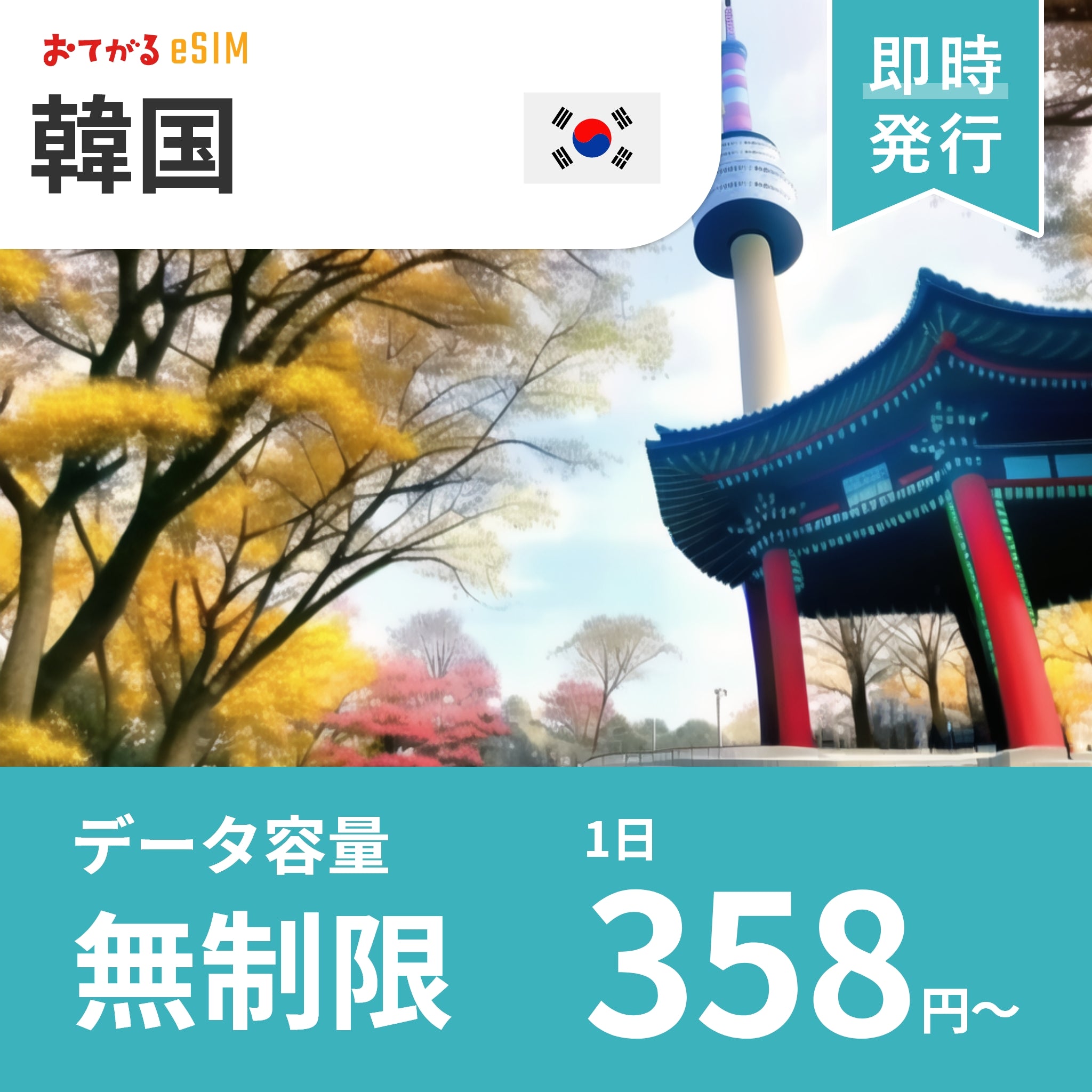
Visit the eSIM sales store and select a plan based on your destination, data volume, and number of days.
After purchasing Otegaru eSIM, a QR code and a setup PDF will be sent to your registered email address.

STEP 2 | Open your smartphone's settings screen
[For iPhone]
Tap "Settings" > "Cellular" > "Add Cellular Plan"
[Android]
Tap "Settings" > "Network & Internet" > "Mobile Networks" > "+Add"
STEP 3 | Activate your eSIM
How to scan a QR code
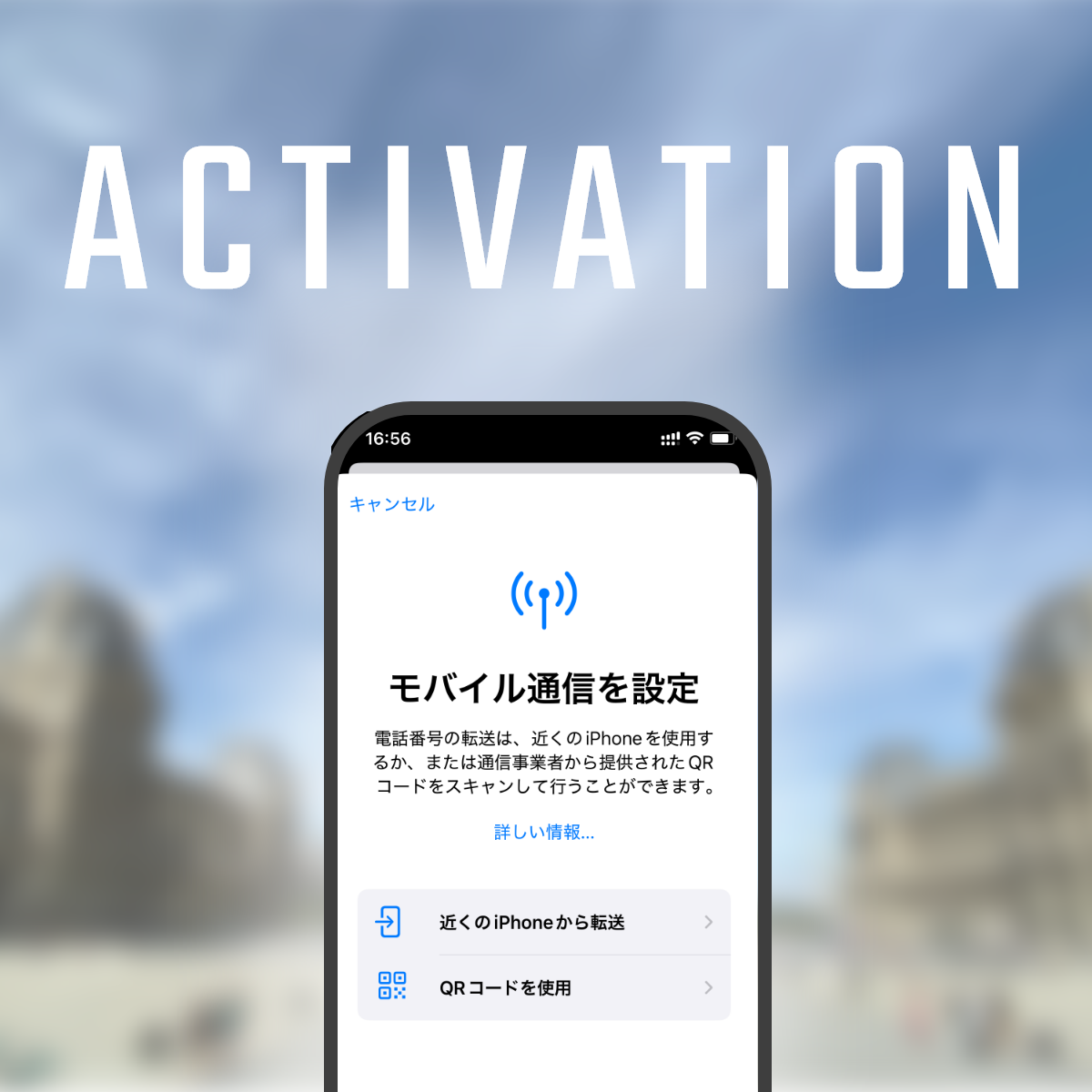
[For iPhone]
Tap "Add eSIM" > "Use QR Code" > Scan the QR code in your email > Tap "Continue" to activate the eSIM > Tap "Done".


[Android]
Tap "Network & Internet" > "SIM Settings" > "Add eSIM" > Scan the QR code > "Settings" > "Done".
If you cannot read the QR code
If you are unable to read the QR code properly, tap "Enter details manually" and enter the required information in the PDF instructions sent to you by email.
STEP 4 | Set up your eSIM plan
Once you arrive at your destination, you will need to set up data roaming.
[For iPhone]
Go to "Settings" > "Mobile" and tap the eSIM you just added, then turn it on by clicking "Turn this line on." Tap "Mobile Data Network" and enter your APN information. Just fill it out exactly as it's written in the instruction PDF.
Then turn on "Data Roaming" (turn off Wi-Fi).
[Android]
Tap "Settings" > "Network & Internet" SIM and select the SIM you just added.
Then, go to "Settings" > "Use SIM" and turn on "Roaming Data" (turn off Wi-Fi).
STEP 5 | Test the connection
How to check your internet connection
Basically, all you need to do is check whether the mobile data icon is displayed in the notification area at the top of your smartphone screen.
Alternatively, open your browser and check if you can load a web page.
How to run a speed test
You can run a speed test by searching "internet speed test" on Google.
You can also find websites that allow you to perform speed tests by searching the web. There are also apps that allow you to perform speed tests, so if you are worried, it may be a good idea to download them in advance.
What to do if you can't connect
If you are still unable to connect to the Internet after completing the settings up to STEP 4, there may be a problem with the APN. We will explain the settings below.
[For iPhone]
Please make sure that the APN information in the email, including the username and password, is blank.
This is usually set automatically, but if you have other characters, please correct them manually.
If you do not plan to use the SIM card from your Japanese carrier while you are in Japan, please turn off the line and use an eSIM.
[Android]
Select the added eSIM and tap "Access Point Names."
Tap "Edit Access Point" in the + menu at the top right of the screen, fill in the instructions in the PDF you received via email, and you're done.
FAQ
Q: Can I use an eSIM on multiple devices?
A: The same eSIM information can only be used on one device because eSIMs are used by registering SIM information directly on the device.
Q: Can I keep my phone number?
A: You can continue to use it as is. Since eSIM can be subscribed to as a secondary line, your original phone number will not be lost.
Q: What should I be careful of when using it overseas?
A: Some devices do not support eSIM. Although eSIM is becoming more common, older models often do not support it. It is important to check whether your device is compatible.
Q: What happens if I run out of data?
A: You cannot add data capacity or extend the usage period with Easy eSIM. If you wish to do so, you will need to purchase a new one.
Q: Is there an activation deadline for the eSIM I purchased?
A: The activation deadline for Easy eSIM is 30 days from the date of purchase. Please activate it by the deadline.
Summary of eSIM connection
- Shop for the eSIM plan that's right for you
- Adding an eSIM from your smartphone's settings screen
- Display the screen
- Scan the QR code with your camera and set up data roaming after arriving at your destination.